
Importing a Cabin Crew Roster Screenshot: A Practical Checklist
Before uploading a roster screenshot, check dates, codes and missing pages. After import, compare days off, flights and TBC times with the original.
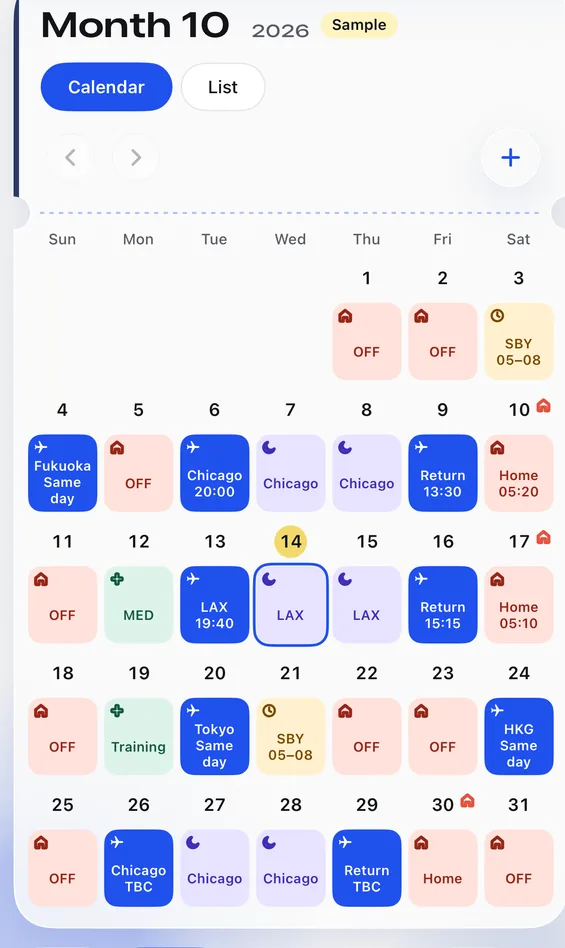
A screenshot of a whole month’s roster can be quicker than filling in every day by hand. But a cropped date column or a flight placed on the wrong side of month-end can change the date the family expects the crew member home. A few minutes of checking at import saves confusion later.
Before uploading: make every date legible
- Check that the screenshots cover the whole month, including the month and year. If the roster spans several pages, make sure none are missing.
- Zoom in on the date column, duty codes and flight numbers. Small text can make a 1 look like a 7, or make similar letters hard to tell apart.
- Look for notes at the bottom, duties crossing into the next month and revision marks. If the company issued a newer roster, use that version for the check.
- Cover names, staff numbers or other details the roster reader does not need before deciding what to upload.
First pass after import: dates and duty types
Do more than check whether every calendar square has an entry. Go from the first day to the last against the original roster: was a day off read as standby, a layover as an ordinary flight, or training as a day off? Pay particular attention to dates with several duties and to the last days of the month.
A code may mean different things at different companies. Leave an uncertain one as TBC until the company guide or the crew member’s own record confirms it. For common categories, read the guide to crew roster codes.
Second pass: each flight’s date and time
A flight day on the calendar does not mean every leg has a confirmed time. Open the legs the family needs to know about and compare the origin, destination, flight number and departure and arrival dates. For overnight or cross-time-zone flights, check both local dates and base time. If a time cannot be found, leave it as TBC rather than working it out from another flight.
After saving: reopen the calendar in two places
Return to the calendar and check a few dates you just confirmed, then open one flight’s details. Make sure its time, date and any TBC mark still agree with the original roster. If the company later changes the roster, check the changed dates against the new version.
Keep a short record of what you checked
A note such as ‘these days checked; these times awaiting the company update’ is enough. If a family member sees TBC, they can tell the information still needs confirmation rather than assuming it was forgotten.
See how Feiban builds a rosterFrom import and checking to sharing a calendar the family can read.How to read crew roster codesStart with the common categories for days off, standby, layovers and training.