
Crew tutorial: upload a roster image, review dates and save
New to Feiban? Follow the App screens to confirm your home base, upload a roster image with consent, review the AI draft and check the saved calendar.
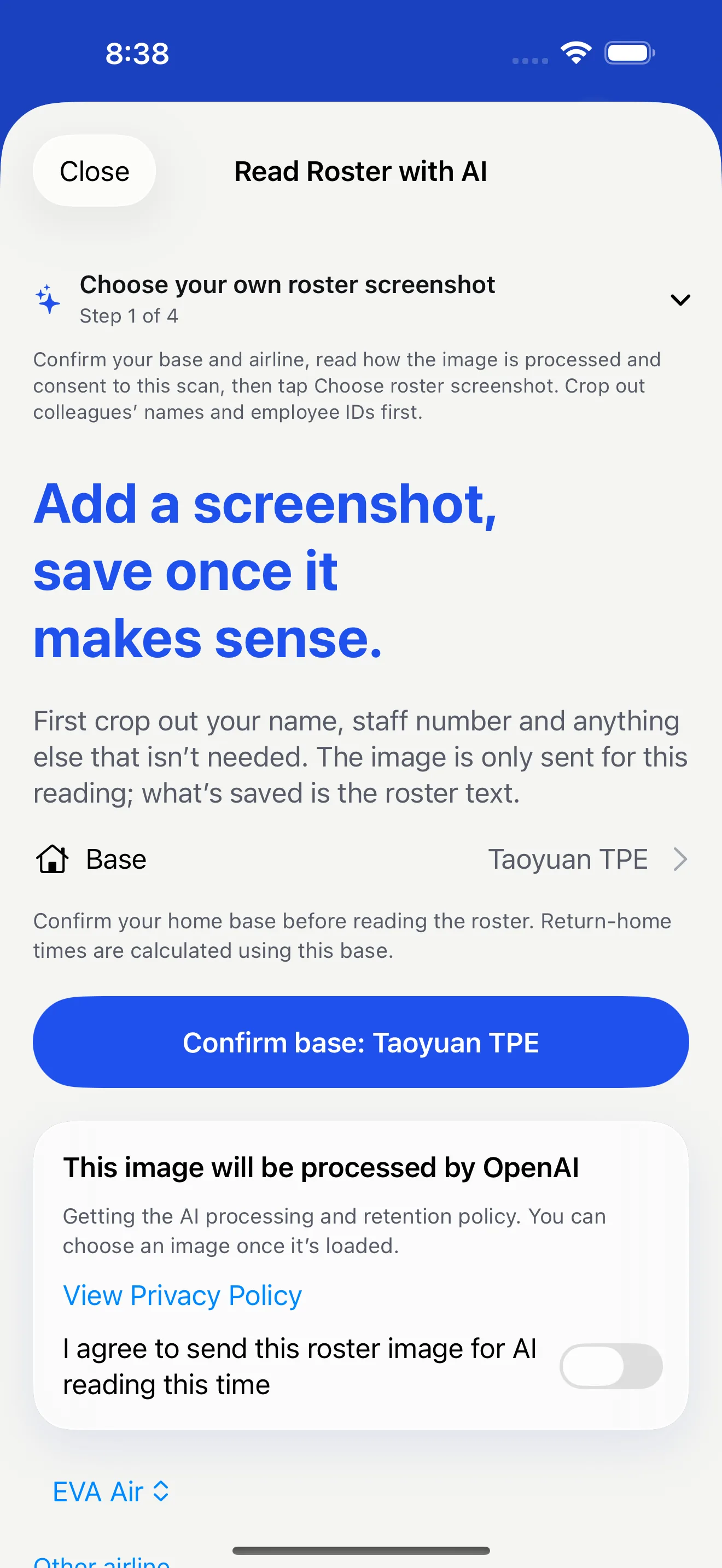
This guide follows the crew path from image upload to review and save. Prepare a complete image of your own roster. If your company has issued a revision, compare the App draft with the latest original. The phone images are simulator demonstrations with sample data; a sample roster cannot be shared as your own duties.
Prepare three things
- Sign in to your Feiban account and check that you are using crew mode.
- Capture the whole month, including dates and duty codes. If the roster spans several pages, check that no page is missing and choose each image separately.
- Know your home base airport. You will confirm it in the App before sending an image.
Step 1: upload from Roster
- Open the bottom Roster tab and choose Upload roster screenshot. A new account may first see the crew introduction.
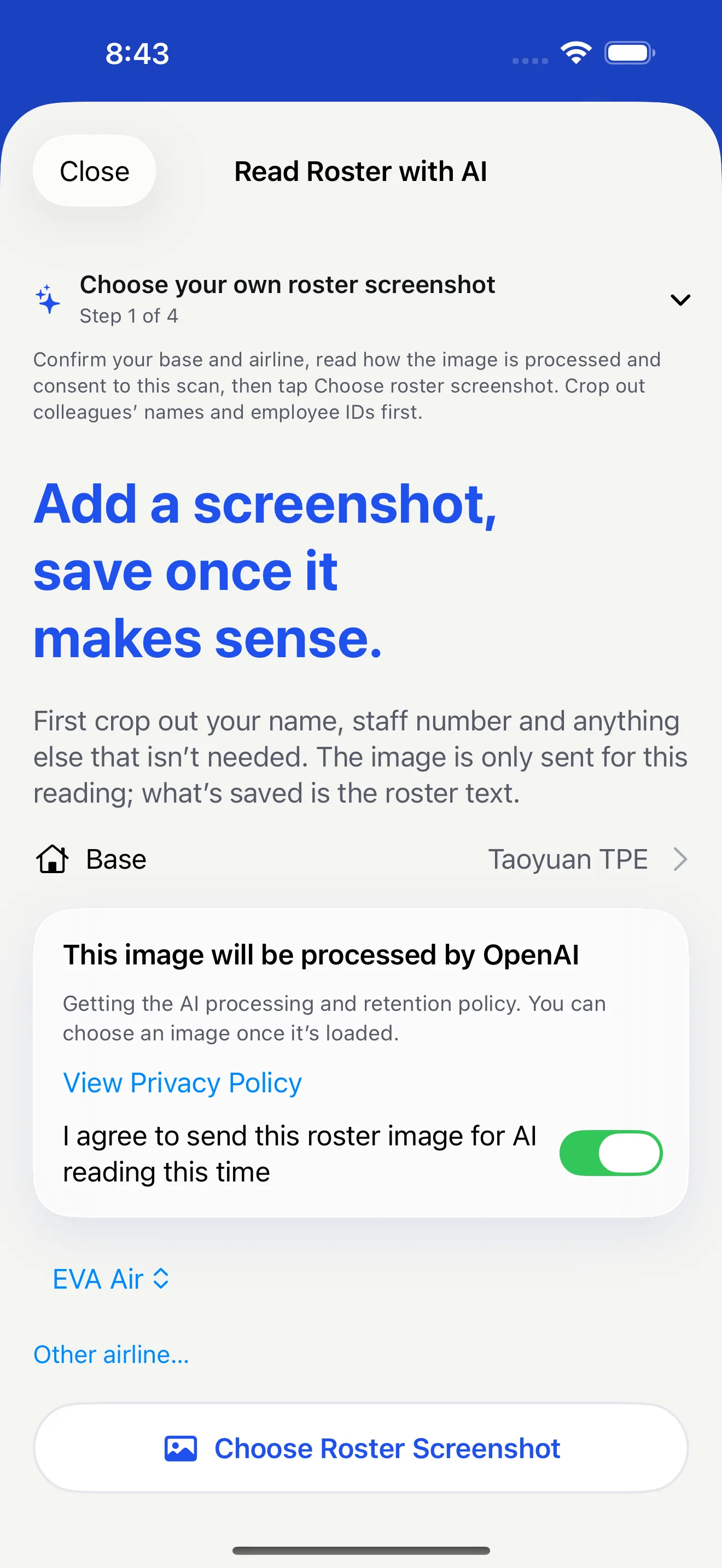
- Confirm the home base shown by the App. Even when an airport was prefilled, you must confirm it yourself.
- Read and accept the image handling notice before choosing the roster image. The image picker stays disabled until you give consent.
Step 2: review the draft day by day
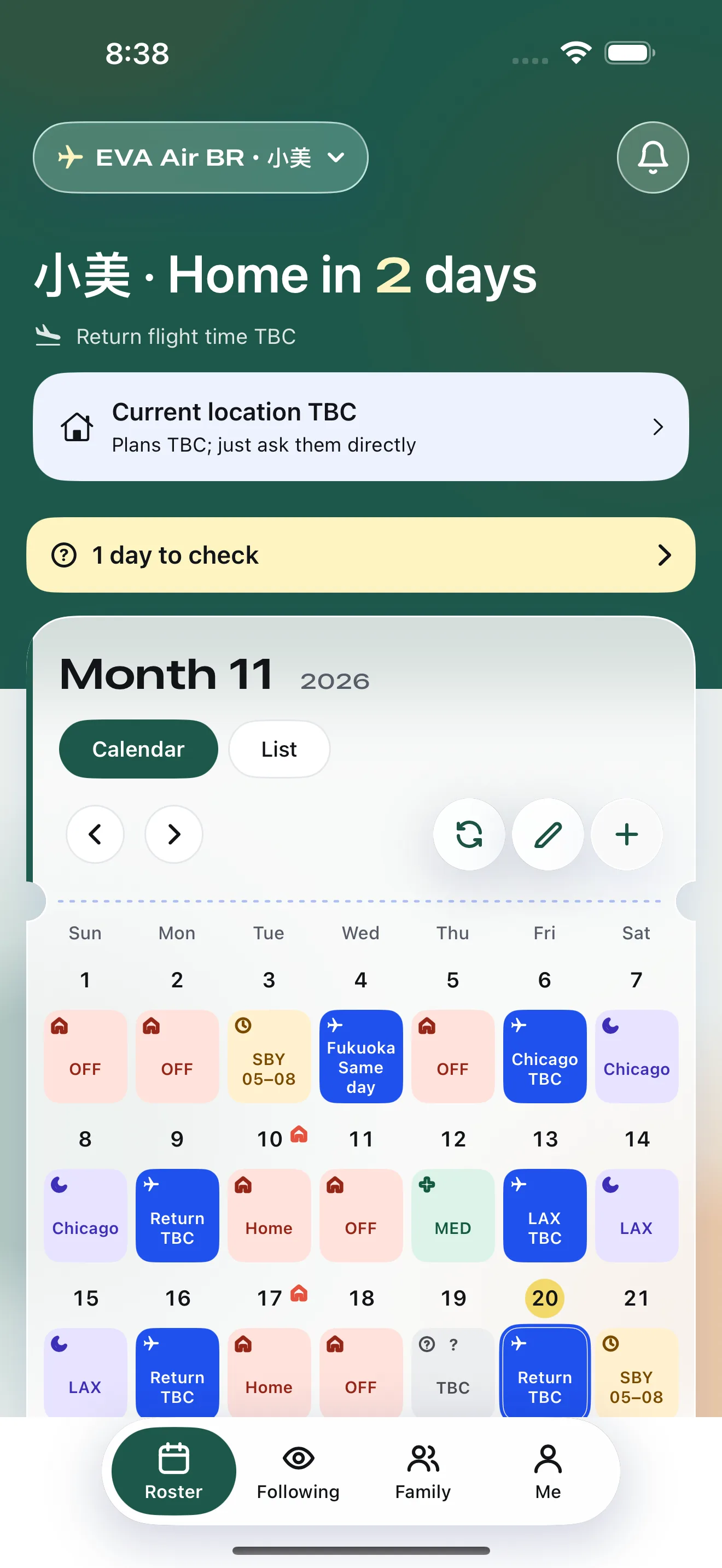
Compare the draft with the original from the first day of the month to the last. Check days off, standby, layovers and every flight, especially overnight and cross-month duties. An unfamiliar code remains on the review list until you choose its meaning from the company guide or your own record. A full calendar alone does not mean every day is correct.
Step 3: preview changes, then check the calendar
- After tapping Finish, inspect the date changes in the save preview. Make sure the draft will not replace a correct day by mistake.
- Confirm the save, return to Roster and spot-check flight days, days off and entries still marked for confirmation.
- Open a flight detail and compare the airports and scheduled times with your source roster. Actual operations follow airline announcements.
Common questions
Can I save while some codes are unclear?
You can keep uncertain entries marked for confirmation and save the dates you have checked. Return to the review entry later to correct them. Do not turn a guess into a confirmed duty.
Will family see the draft immediately after upload?
Family sees only content you have saved and authorised for sharing. Check the calendar first, then use Family to choose who can follow and what is visible.
Next: share your roster with familyCreate a follow code and choose what a family member can see.