
Crew tutorial: invite family and choose roster sharing
Already saved your roster? Follow the Feiban App screens to name a family invite, choose visible details, share a follow code and manage access later.
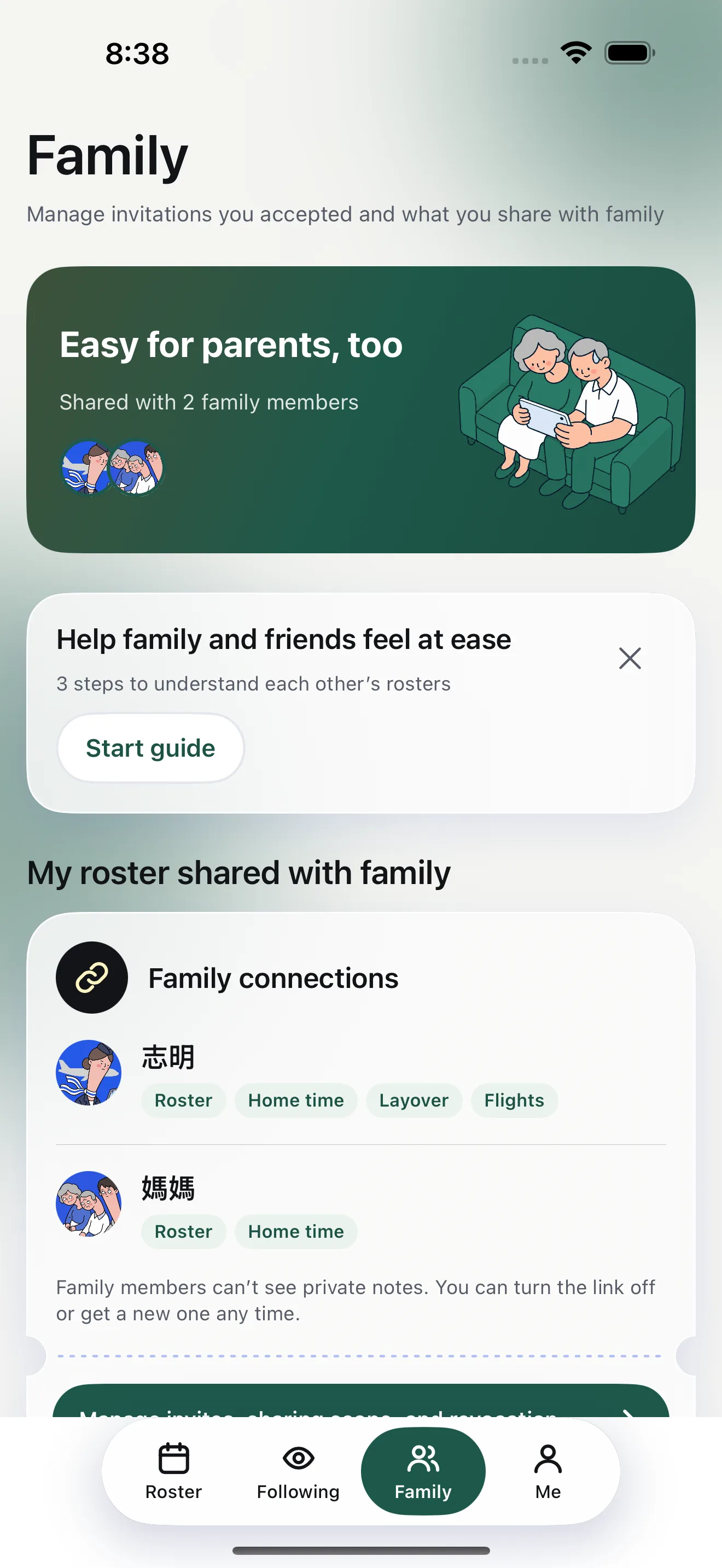
A family member may want to know your days off and homecoming date. You decide what is visible. This guide starts in the crew Family tab; the phone images are simulator demonstrations with sample data. Sign in and save your own roster first; the sample roster cannot be shared with family followers.
Step 1: open sharing management
- Tap Family at the bottom, find the roster you share and open the entry to manage invites, visible scope and revocation.
- Choose Invite family. If the App asks for your display name first, set a name the invited person will recognise.
- Choose the relationship and enter a label for this person. A nickname is enough; a full legal name is unnecessary.
Step 2: choose visibility before creating a code
The invite screen always shares the basic roster and days off. Choose the whole roster, one day before and after today, or one week before and after today. You can also choose whether to share homecoming, outstation city, flight numbers and times, or notes marked for family. Private notes, colleague lists and the original image are not shared.
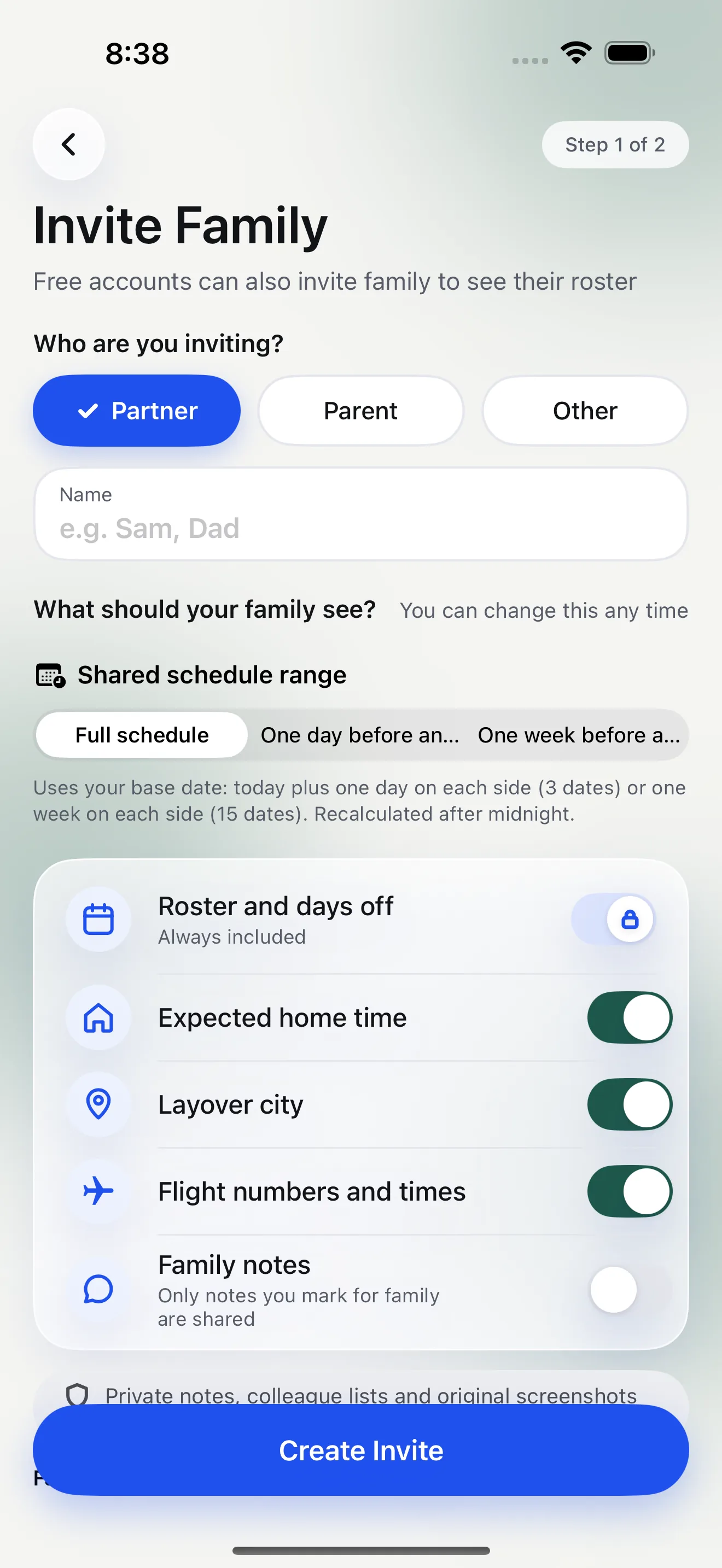
- Tap Create invite. On your first invite, confirm that this is your roster or that the roster owner has agreed to sharing.
- Send the generated follow code or invite message privately to the intended person. Family signs in to a separate account, previews the scope and accepts.
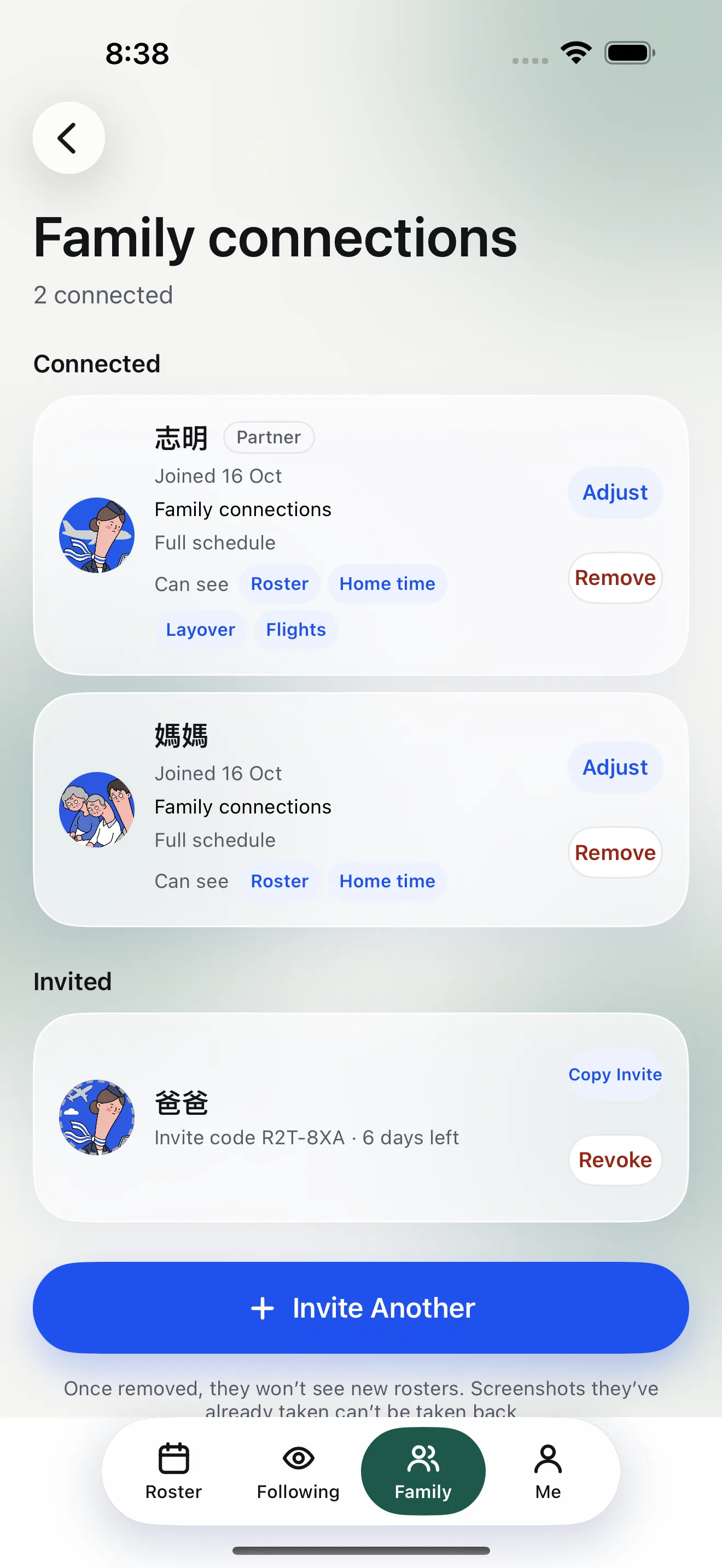
- Return to sharing management to check invite status. You can adjust scope, revoke a pending invite or stop sharing.
Common questions
Can family read my private notes?
No. The invite screen lists the roster details that can be shared; private notes are not included.
What if the follow code no longer works?
A code can expire or become unavailable after use. Open Family, create a new invite and send the new code privately.
For family: enter the follow codeShare this guide so the invited person can preview scope and accept.