
Family tutorial: enter a follow code and view a crew roster
Received a Feiban follow code? Enter it in the App, preview the person and sharing scope, accept the invitation and open the authorised crew roster.
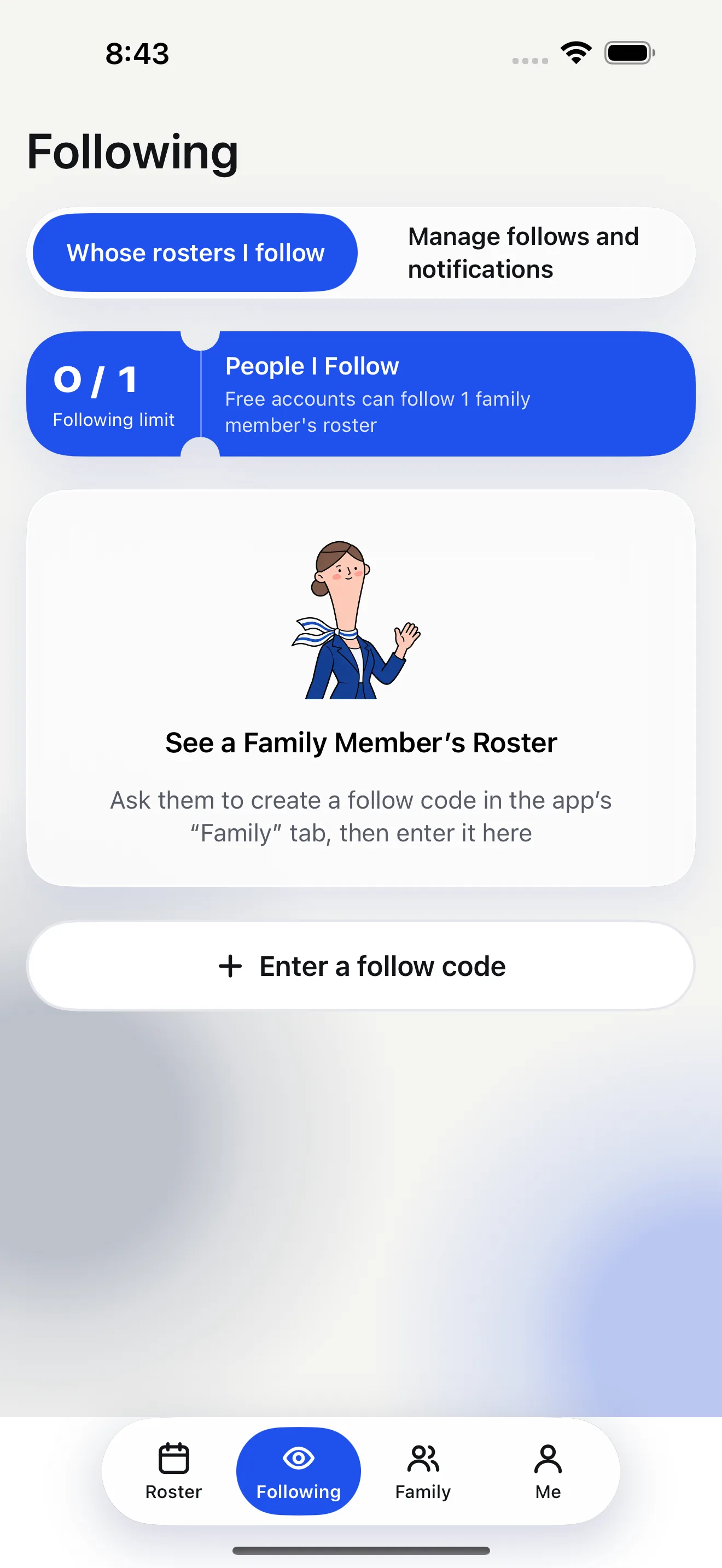
This guide is for a family member invited by a crew member. The phone images are simulator demonstrations with sample data. The crew member creates a roster and a follow code in the App first. You accept through your own Feiban account; you do not upload the crew roster for them or search for a stranger's itinerary.
Step 1: enter the code under Following
- Open Feiban, sign in to your account and tap Following at the bottom.
- Tap Enter follow code. Paste the code sent privately by the crew member, or use the QR scanner shown on the screen.
- Submit the code. The App shows an invitation preview before you accept; typing a code alone does not grant access.
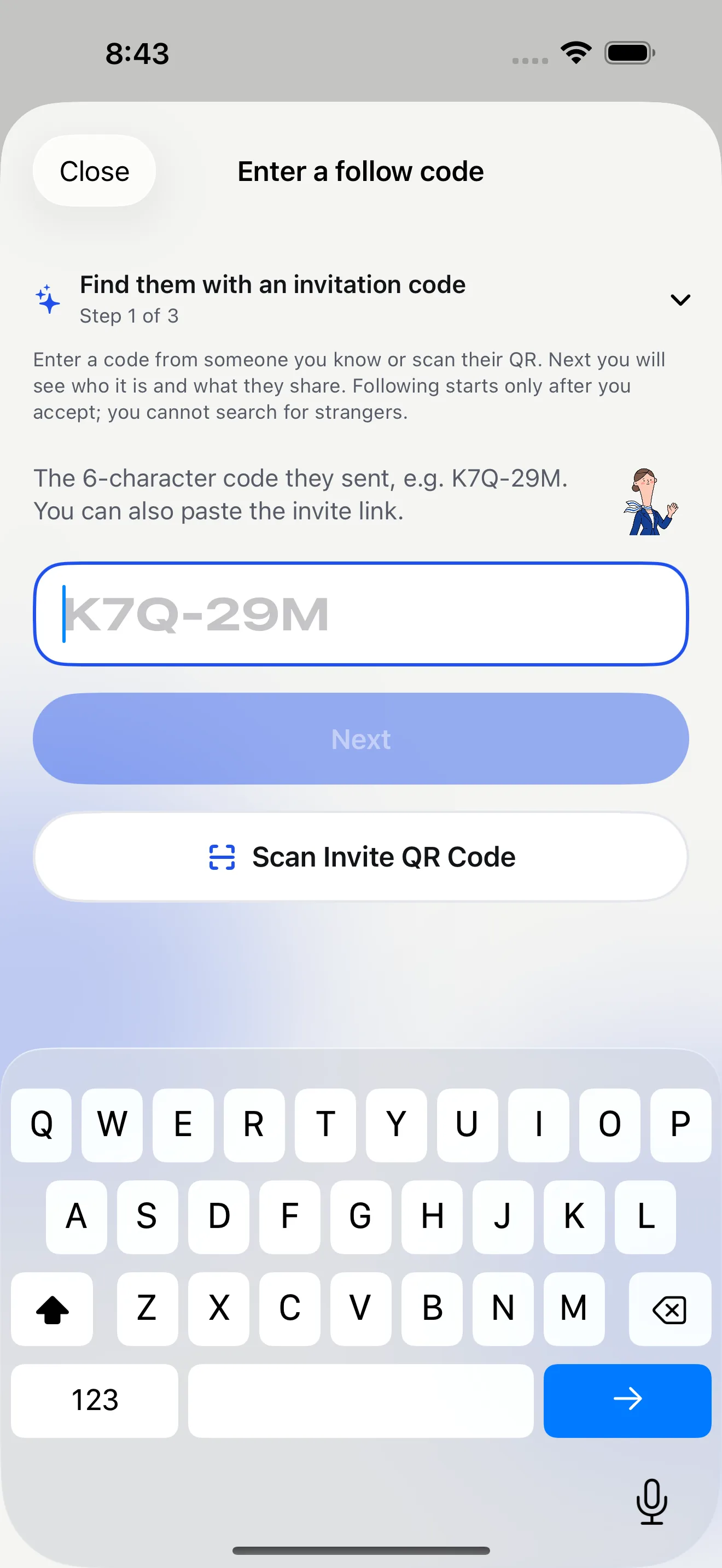
Step 2: check the person and sharing scope
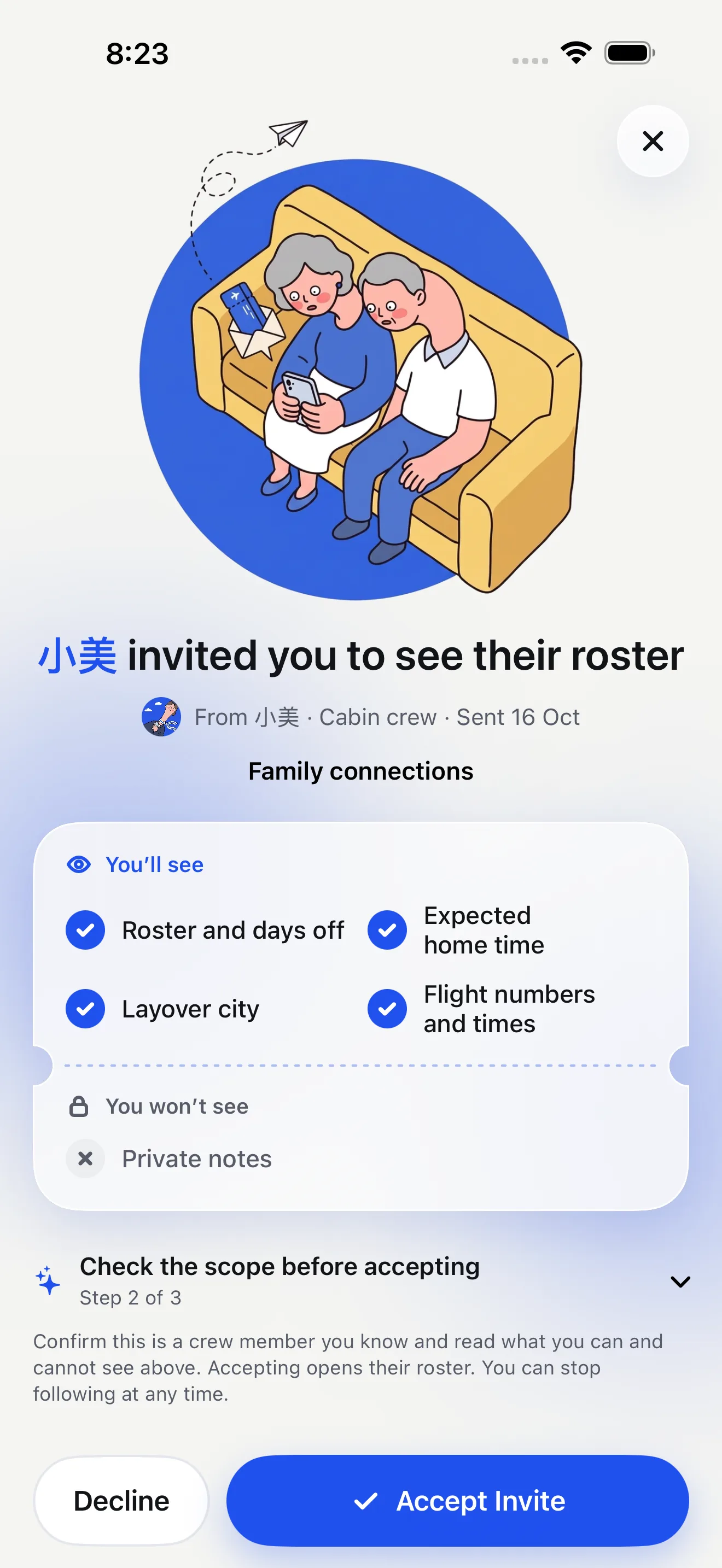
The preview shows who invited you, what you can see and what remains hidden. Confirm that you recognise the person and that the visible details match what you agreed. Then tap Accept.
Step 3: open the shared roster
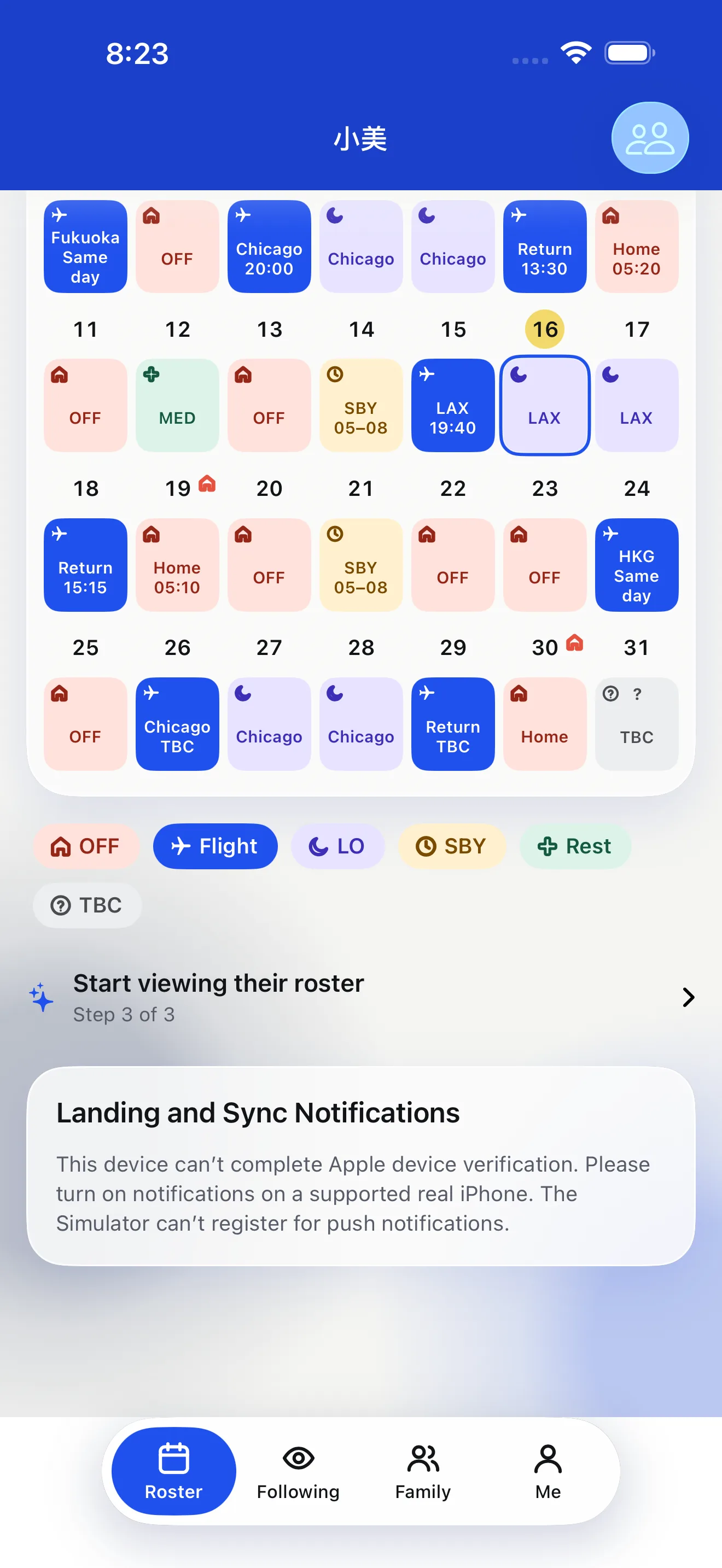
- After accepting, return to Following and open the connected person's roster.
- The calendar shows only details currently authorised for you. Tap a day for details. If an entry still needs confirmation, ask before making pickup plans.
- You can leave the follow later through tracking management. The crew member can also change scope or stop sharing.
Common questions
What if the invite cannot be found or the code expired?
Check the code first. If the App says it was used, expired or paused, ask the crew member to make a new invite under Family. Do not post the code publicly for help.
Why do I see fewer dates or flights than the crew member?
That can reflect the current sharing scope. Check the visible details in the invite preview or follow settings, then confirm with the crew member.
Next: set follow notificationsCheck this iPhone's notification status and choose which alerts to receive.