
Family tutorial: set follow notifications and quiet hours
Already following crew in Feiban? Follow the App screens to check device permission, change alerts for one person and set quiet hours on your iPhone.
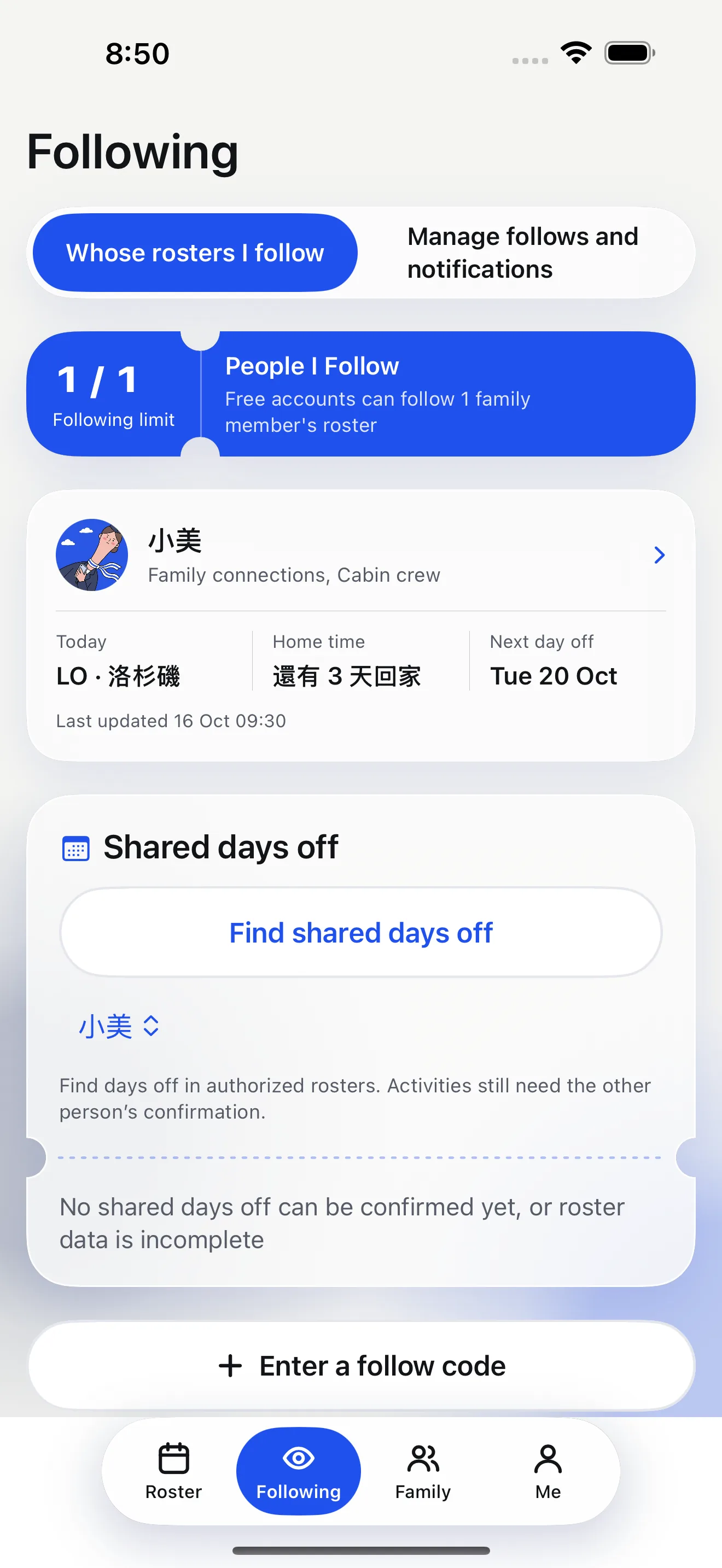
Once you follow a crew member, you can choose alerts for that person and set quiet hours on this iPhone. The phone images are simulator demonstrations with sample data. Notification switches do not expand the roster details shared with you; hidden content stays hidden.
Step 1: find family notification settings
- Open Following at the bottom and tap Manage following and notifications.
- Open Notifications and check this iPhone's permission status. If notifications are not allowed, use the prompt shown in the App to enable them.
- Set quiet hours for this phone on the same screen. This device setting does not change the crew member's roster sharing.
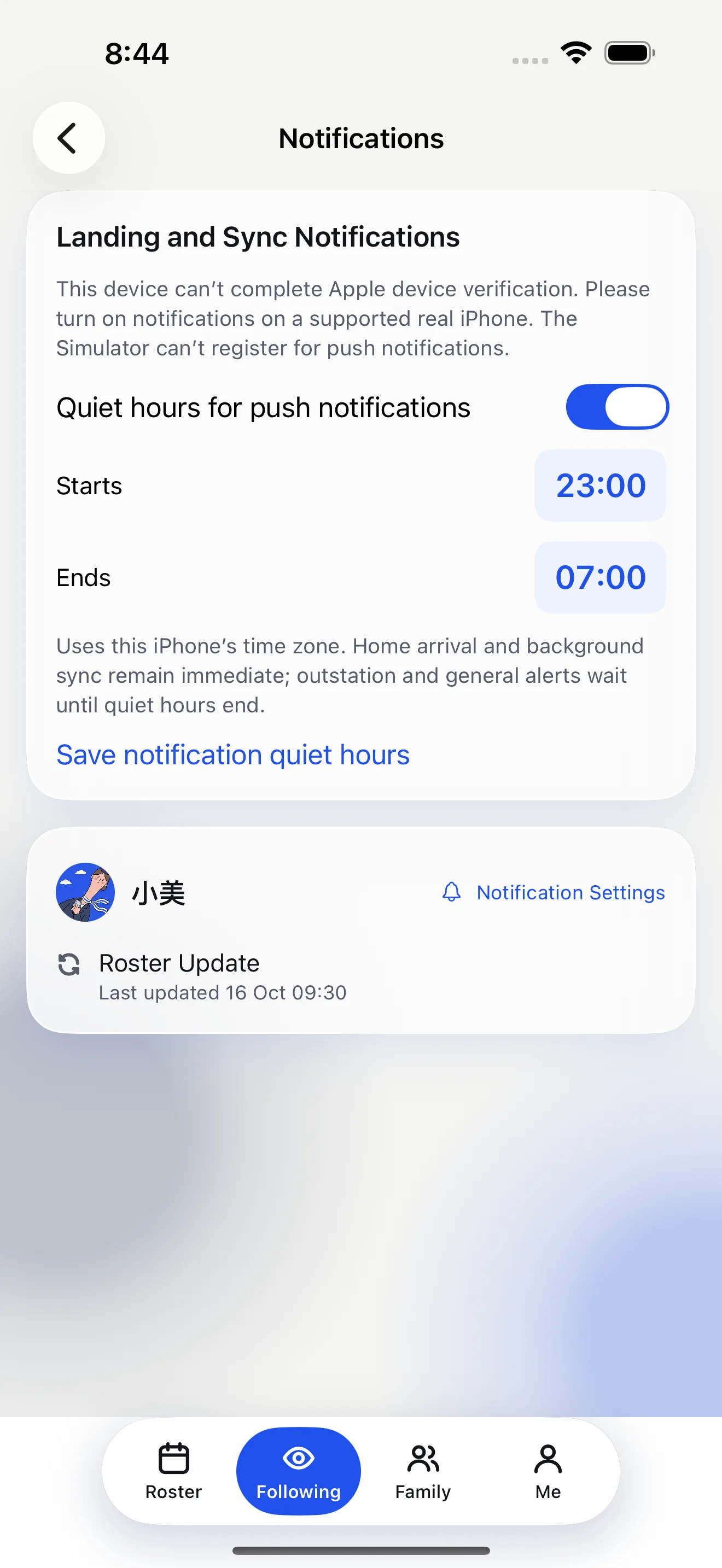
The simulator cannot complete Apple device registration, so it cannot prove that a push alert is delivered. After choosing your settings, allow notifications and test them on your own physical iPhone.
Step 2: choose alerts for one crew member
Find the person on the Notifications screen and tap Notification settings. The sheet shows details you can and cannot see. You may also set a private alias to recognise that person. Depending on the authorised scope, available switches may include homecoming, landing or roster changes.
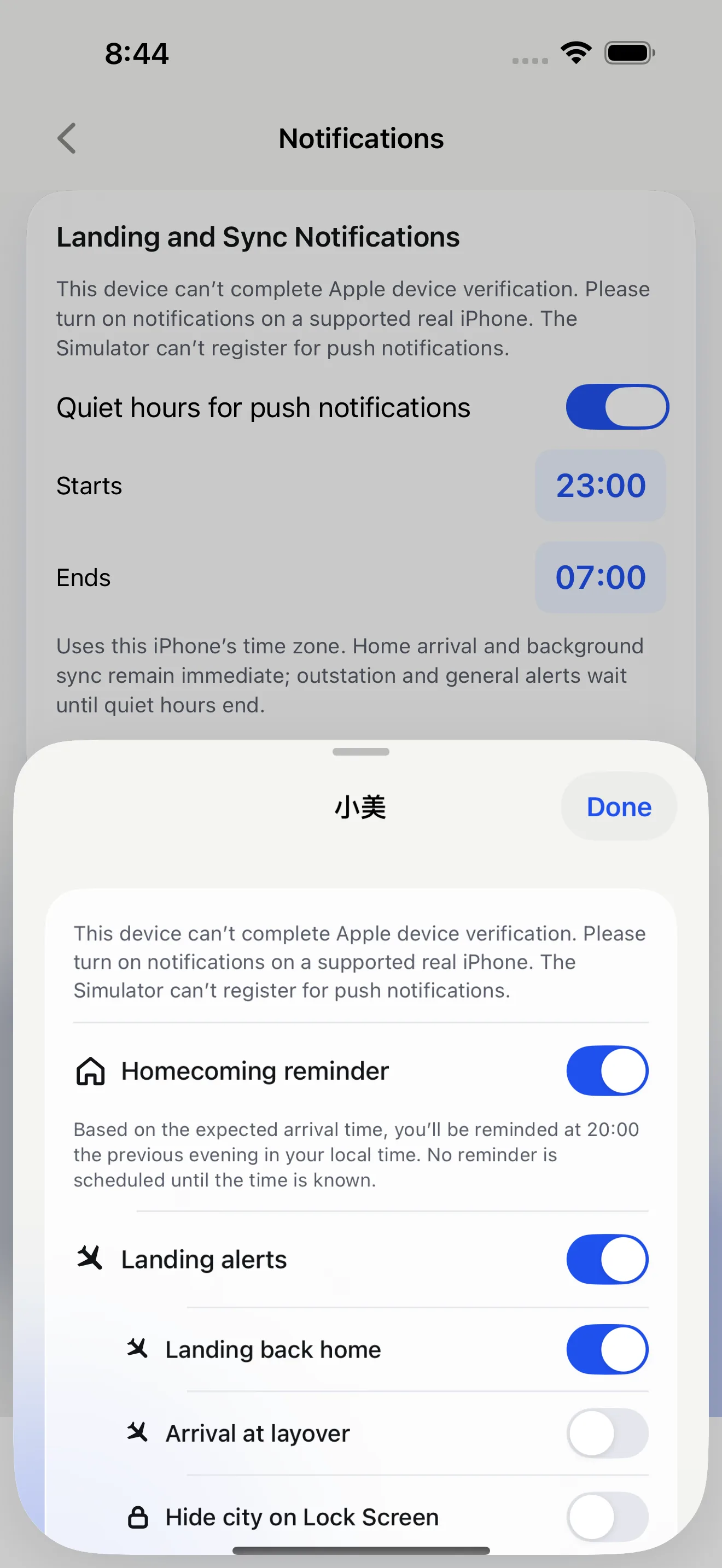
- Turn on the alerts you want. If iOS asks for notification permission, decide whether to allow it.
- If landing alert details appear, choose options such as arrival at the home base, arrival at an outstation or hiding the city on the lock screen. Turning off the landing master switch disables its detail switches.
- Return to Notifications after saving. If a setting fails to save, the App shows a message so you can try again.
Common questions
Why did I receive no landing alert after turning it on?
Check this phone's permission and quiet hours, then check whether the crew member shares flight details. Without usable landing data, the App does not treat a scheduled arrival as a confirmed landing.
Can I mute alerts for just one person?
Yes. Change the switches under that person's Notification settings. This does not edit the crew roster or stop following.
Not following a crew roster yet?Accept an invitation with a follow code before choosing alerts.